ohsome Dashboard
On this page you’ll find a quick overview of how to find your way around the ohsome Dashboard. In the top-left tab you can switch between OSM History Stats, OSM Quality Analyses and Data Extraction. The History Stats give you insight into how OSM data has developed for any region and any period. The Quality Analyses offer many different indicators you can use to validate OSM data for your area of interest. The Data Extraction tab lets you download OSM data directly for your area of interest.
Click the OSM Quality Analyses tab in the top left to switch the dashboard over. The dashboard is split into different sections, each affecting a different step of the analysis:
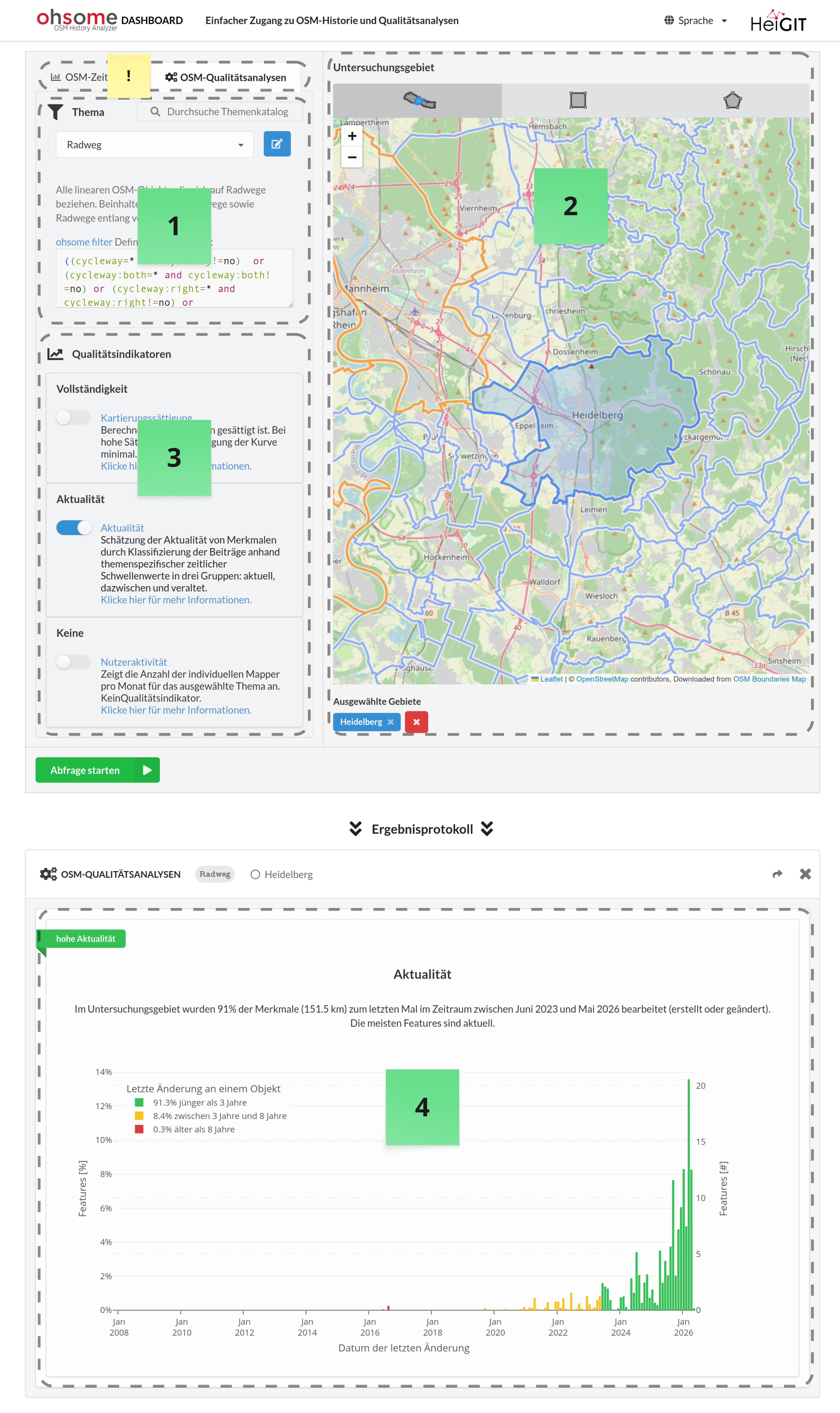
Topic
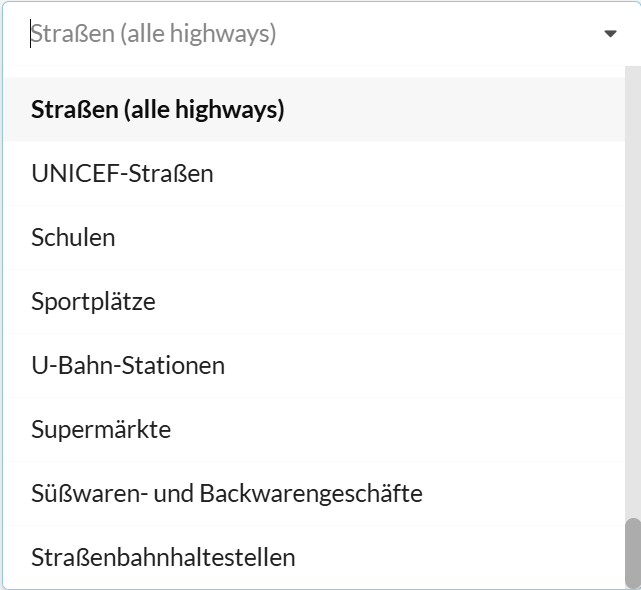
In the first step, choose the topic you want to investigate from the dropdown menu. Clicking into the input field also lets you search for other predefined topics.
Topics are defined by a set of OSM tags that describe a particular feature type. The ohsome Dashboard automatically builds the matching OSM filter based on the selected topic.
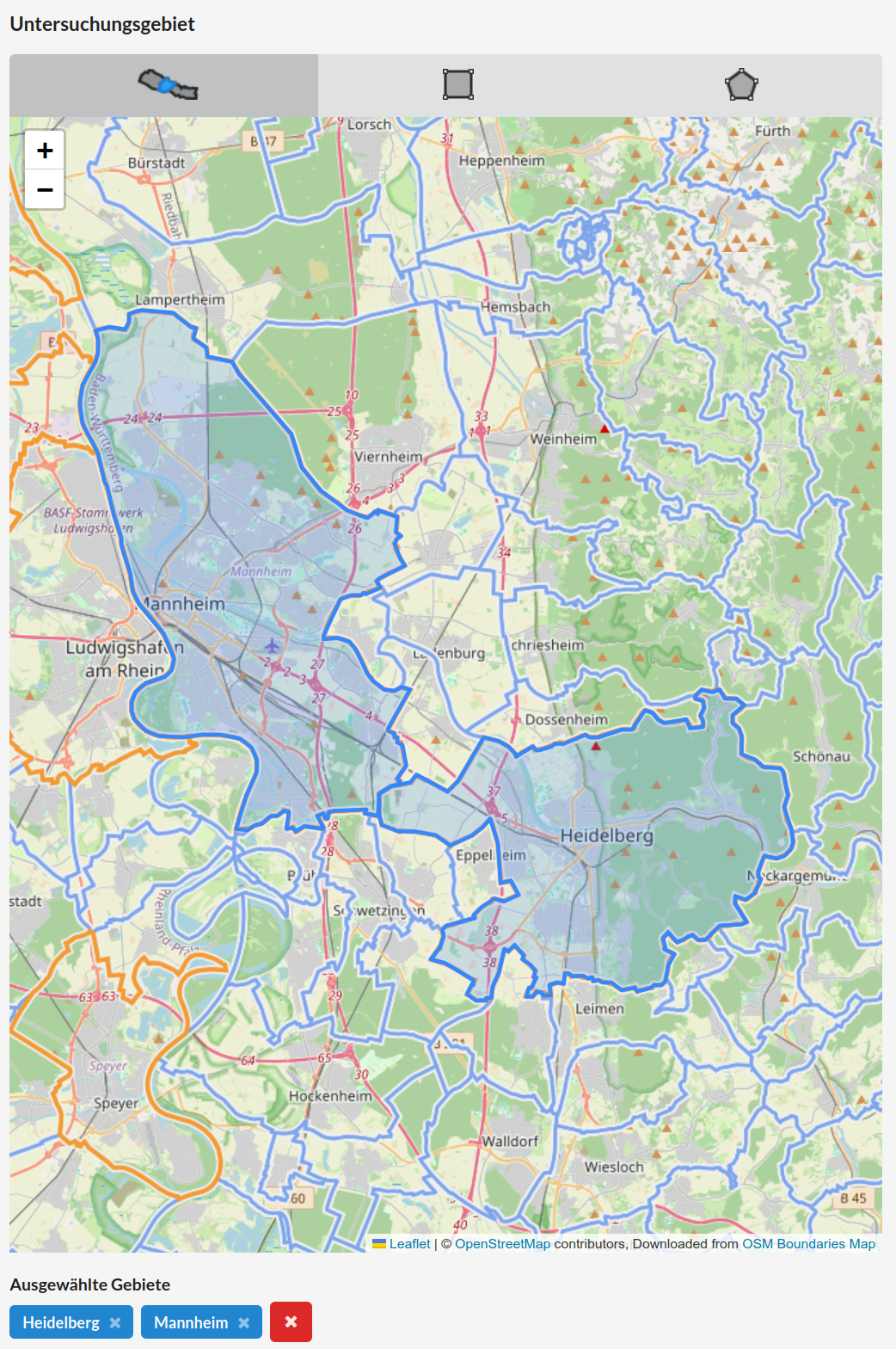
Area of Interest
Choose your area of interest on the map in the right-hand pane. You can select along administrative boundaries or with a freely drawn frame. Zoom in to get a more precise outline of your area of interest.
Simply click on an area to select it for the analysis. You can also select several regions at once and run a combined query for the whole region. You can remove areas by clicking on them again or by removing the blue box under the map.
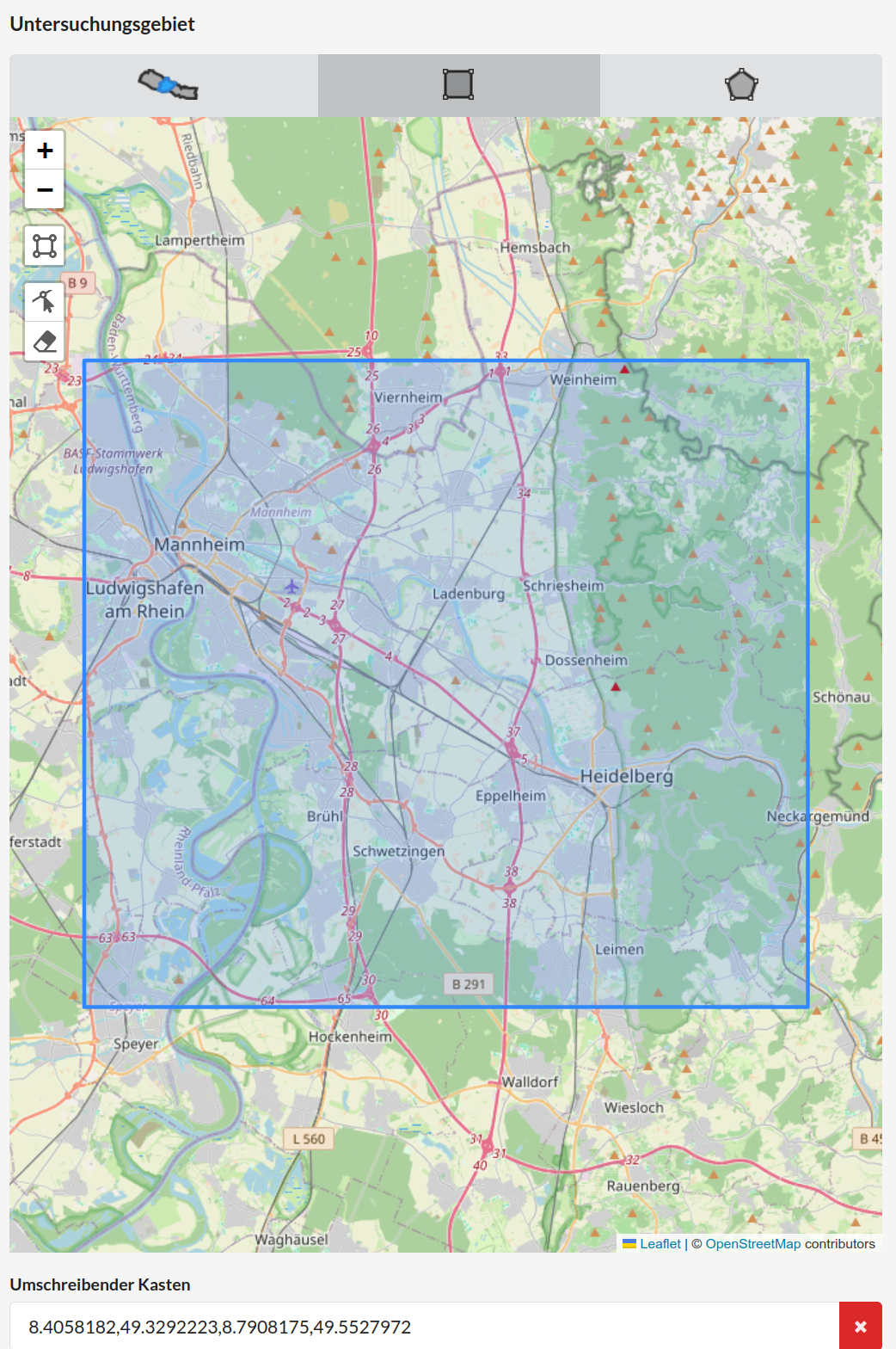
Drag out a rectangle with the mouse to define a bounding box. You can also adjust or delete this bounding box afterwards.
Quality Indicators
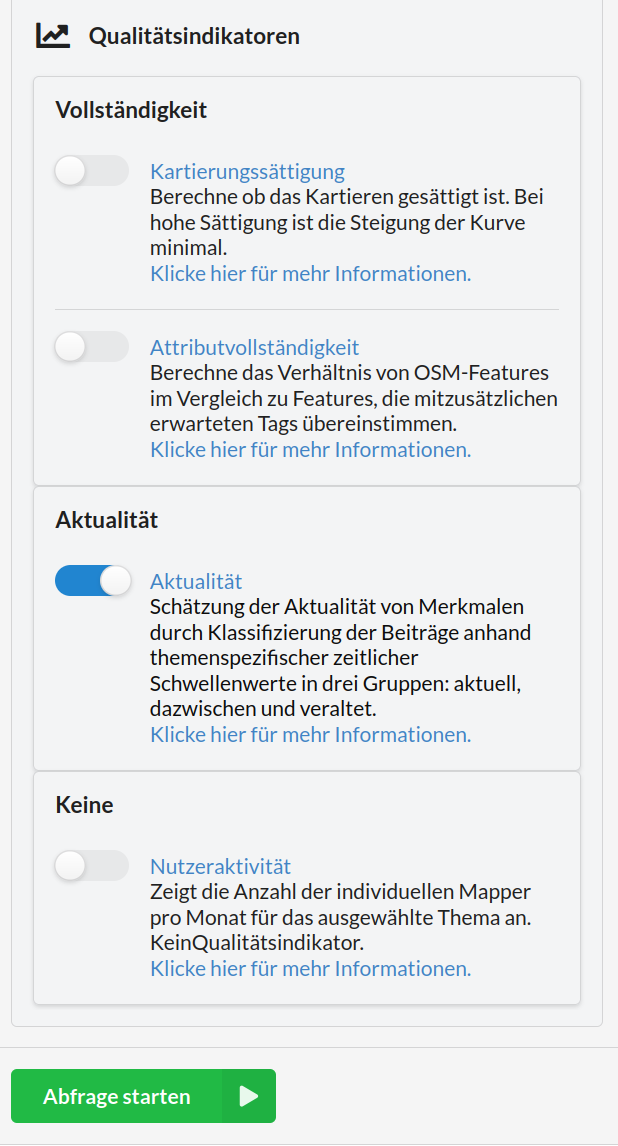
Depending on the topic you’ve chosen, you’ll find the available quality indicators to select from. Each indicator is briefly described directly in the ohsome Dashboard. A detailed explanation of the methodology and possible limitations can be found in the next chapter.
You can analyse OSM data across several quality dimensions:
Completeness
Mapping Saturation
Attribute Completeness
Building Comparison
Land Cover Completeness
Road Comparison
Currentness
Currentness
Thematic Accuracy
Land Cover Thematic Accuracy
Road Thematic Accuracy
Others
User Activity
Choose the ones you’re interested in and click run query to start calculating your results.
Results
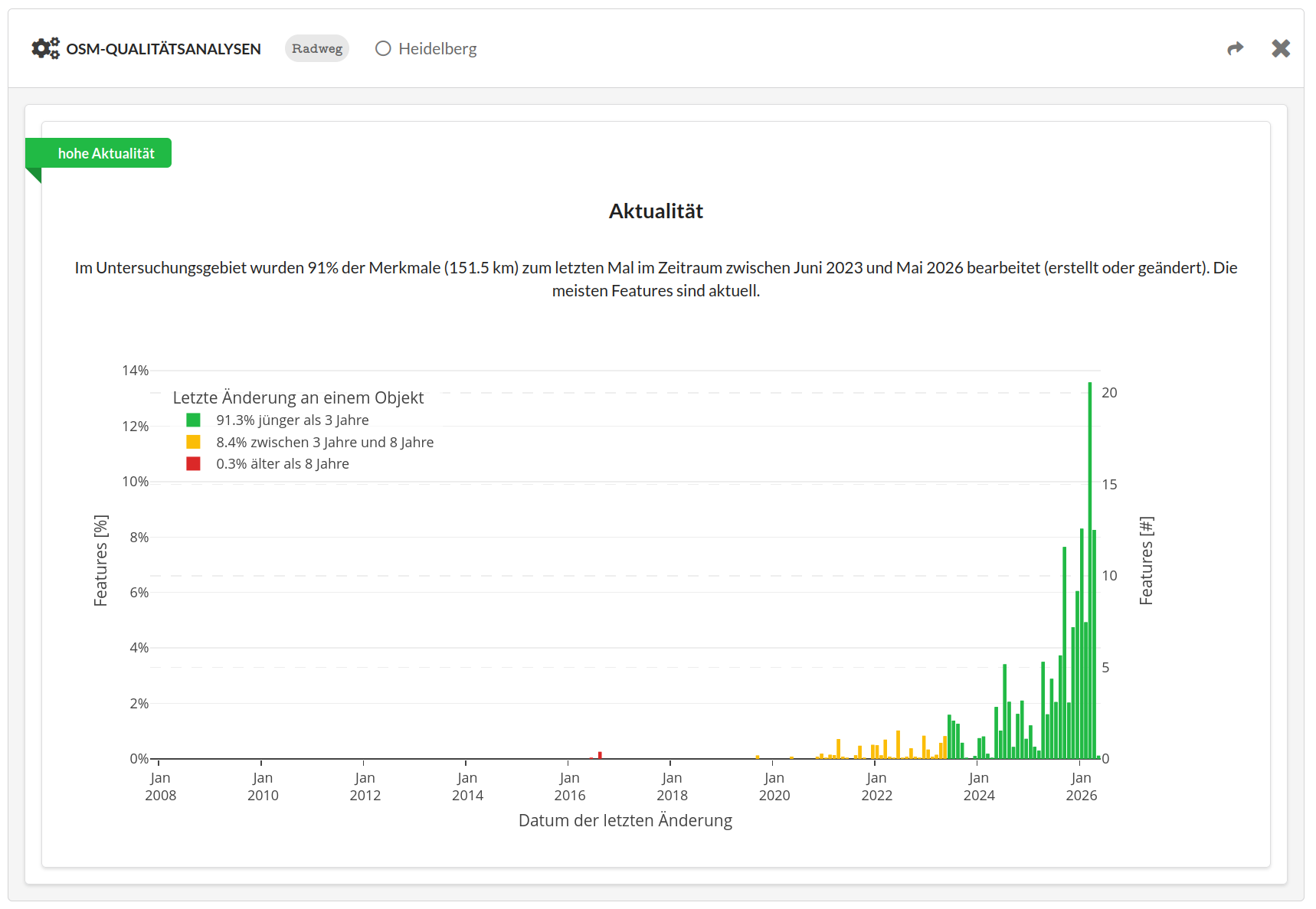
After a few seconds, the calculated results load as a figure in the lower pane. Each indicator’s result is colour-coded into three categories: usually green (good), yellow (medium) and red (poor). A few sentences explain the classification.
On the following pages, we describe the results for each quality indicator and discuss various interpretations.